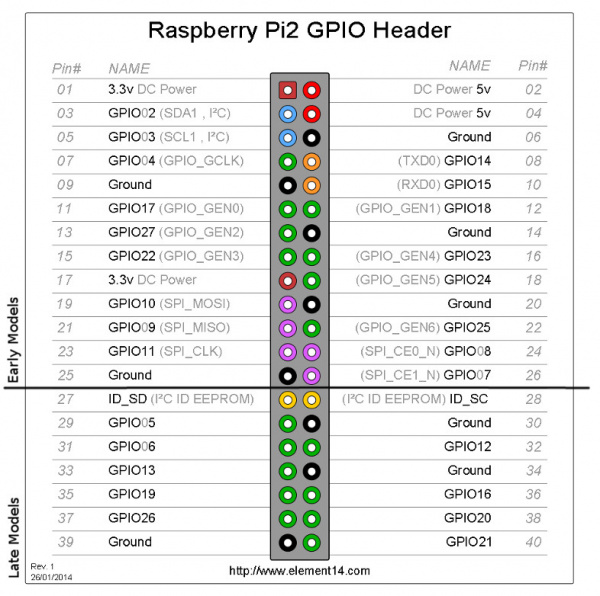
First I updated my Rpi
$ sudo apt get update
$ sudo apt get dist-upgrade
$ sudo apt get upgrade
$ reboot
Above make take 30 mins!
Then to wire up I used a breadborad and:
https://learn.sparkfun.com/tutorials/flir-lepton-hookup-guide/all
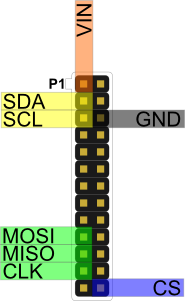
My Lepton FLIR module wires:
CS - black -pin 26 (SPI_CE1_N)
MOSI - yellow - pin 19 (SPI_MOSI)
MISO - blue - pin 21 (SPI_MISO)
CLK - green - pin 23 (SPI_CLK)
GND - grey - pin 6 (ground)
VIN - purple - pin 1 (3.3v DC power)
SDA - white - pin 3 (SDA1)
SCL - orange - pin 5 (SCL1)
From:
https://learn.sparkfun.com/tutorials/raspberry-gpio#gpio-pinout
Now its wired-up we need the software.
Use:
sudo raspi-config
To enable SPI and I2C and reboot.
sudo apt-get install qt4-dev-tools
Download latest code from:
https://github.com/groupgets/LeptonModule
pi@tola_living_room:~ $ ls
Desktop  Documents  Downloads  mqtt_broker  Music  oldconffiles  Pictures  Pimoroni  Public  python_games  Templates  t.jpg  Videos
pi@tola_living_room:~ $ cd Documents/
pi@tola_living_room:~/Documents $ mkdir Lepton\ FLIR\ camera
pi@tola_living_room:~/Documents $ cd Lepton\ FLIR\ camera/
pi@tola_living_room:~/Documents/Lepton FLIR camera $ wget https://github.com/groupgets/LeptonModule/archive/master.zip
pi@tola_living_room:~/Documents/Lepton FLIR camera/LeptonModule-master $ cd software/raspberrypi_libs/leptonSDKEmb32PUB
pi@tola_living_room:~/Documents/Lepton FLIR camera/LeptonModule-master/software/raspberrypi_libs/leptonSDKEmb32PUB $ ls
crc16fast.c   LEPTON_ErrorCodes.h    LEPTON_I2C_Service.c  LEPTON_SDKConfig.h  LEPTON_Types.h  raspi_I2C.c
crc16.h       LEPTON_I2C_Protocol.c  LEPTON_I2C_Service.h  LEPTON_SDK.h        LEPTON_VID.c    raspi_I2C.h
LEPTON_AGC.c  LEPTON_I2C_Protocol.h  LEPTON_Macros.h       LEPTON_SYS.c        LEPTON_VID.h
LEPTON_AGC.h  LEPTON_I2C_Reg.h       LEPTON_SDK.c          LEPTON_SYS.h        Makefile
pi@tola_living_room:~/Documents/Lepton FLIR camera/LeptonModule-master/software/raspberrypi_libs/leptonSDKEmb32PUB $ make
pi@tola_living_room:~/Documents/Lepton FLIR camera/LeptonModule-master/software/raspberrypi_libs/leptonSDKEmb32PUB $ cd -
/home/pi/Documents/Lepton FLIR camera/LeptonModule-master
pi@tola_living_room:~/Documents/Lepton FLIR camera/LeptonModule-master $ cd software/raspberrypi_video/
pi@tola_living_room:~/Documents/Lepton FLIR camera/LeptonModule-master/software/raspberrypi_video $ ls
Lepton_I2C.cpp  LeptonThread.cpp  main.cpp     MyLabel.h     Palettes.h             README.md  SPI.h
Lepton_I2C.h    LeptonThread.h    MyLabel.cpp  Palettes.cpp  raspberrypi_video.pro  SPI.cpp
pi@tola_living_room:~/Documents/Lepton FLIR camera/LeptonModule-master/software/raspberrypi_video $
pi@tola_living_room:~/Documents/Lepton FLIR camera/LeptonModule-master/software/raspberrypi_video $ qmake && make
All built OK and launced a window but no image!
pi@tola_living_room:~/Documents/Lepton FLIR camera/LeptonModule-master/software/raspberrypi_video $ sudo ./raspberrypi_video
raspberrypi_video: cannot connect to X server
So ran "sudo ./raspberrypi_video 2>errs.txt" on RPI after startx
pi@tola_living_room:~/Documents/Lepton FLIR camera/LeptonModule-master/software/raspberrypi_video $ cat errs.txt
X Error: BadAccess (attempt to access private resource denied) 10
  Extension:    130 (MIT-SHM)
  Minor opcode: 1 (X_ShmAttach)
  Resource id:  0x190
X Error: BadShmSeg (invalid shared segment parameter) 128
  Extension:    130 (MIT-SHM)
  Minor opcode: 5 (X_ShmCreatePixmap)
  Resource id:  0x1a0000b
X Error: BadDrawable (invalid Pixmap or Window parameter) 9
Will try Python approach next, which is what I used last time.
https://github.com/groupgets/pylepton
sudo apt-get install python-opencv python-numpy
pi@tola_living_room:~/Documents/Lepton FLIR camera $ wget https://github.com/groupgets/pylepton/archive/master.zip
pi@tola_living_room:~/Documents/Lepton FLIR camera $ unzip master.zip.1
Archive: master.zip.1
c856c6a1d44970d878e1f4bfdae2c8eee67a6286
creating: pylepton-master/
extracting: pylepton-master/.gitignore
inflating: pylepton-master/LICENSE
creating: pylepton-master/pylepton/
inflating: pylepton-master/pylepton/Lepton.py
inflating: pylepton-master/pylepton/__init__.py
inflating: pylepton-master/pylepton/ioctl_numbers.py
inflating: pylepton-master/pylepton_capture
inflating: pylepton-master/pylepton_overlay
inflating: pylepton-master/readme.md
inflating: pylepton-master/setup.py
pi@tola_living_room:~/Documents/Lepton FLIR camera $ cd pylepton-master/
pi@tola_living_room:~/Documents/Lepton FLIR camera/pylepton-master $ ls
LICENSE pylepton pylepton_capture pylepton_overlay readme.md setup.py
Got it working using Python :)
pi@tola_living_room:~ $ cd Documents/Lepton\ FLIR\ camera/pylepton-master/
pi@tola_living_room:~/Documents/Lepton FLIR camera/pylepton-master $ ./pylepton_capture -d /dev/spidev0.1 image3.png
pi@tola_living_room:~/Documents/Lepton FLIR camera/pylepton-master $ pwd
/home/pi/Documents/Lepton FLIR camera/pylepton-master
pi@tola_living_room:~/Documents/Lepton FLIR camera/pylepton-master $ cp image3.png /tmp
kilnageer@kilnageer-Inspiron-3537:~$ scp pi@192.168.1.119:/tmp/image3.png .
Here two remote commands are being used.
kilnageer@kilnageer-Inspiron-3537:~$ ssh pi@192.168.1.119 "~/Documents/Lepton\ FLIR\ camera/pylepton-master/pylepton_capture -d /dev/spidev0.1 /tmp/image4.png"
pi@192.168.1.119's password:
kilnageer@kilnageer-Inspiron-3537:~$ scp pi@192.168.1.119:/tmp/image4.png .
pi@192.168.1.119's password:
image4.png
Got RaspPi Check app to issue capture commands via ssh but its is a pain to sftp from RPi to phone.
So decided to use web server and continuous capture (say every 5 secs) r single shot with browser displaying image. So phone just connects to the RPi website to control and see images.
$ sudo apt install nginx
$ sudo apt install midori
pi@flircam:~ $ midori localhost
http://nginx.org/en/docs/beginners_guide.html
Now to get index.py up and running!
pi@flircam:~ $ sudo nginx -s reload
To get nginx to serve .py python scripts follow:
https://www.digitalocean.com/community/tutorials/how-to-set-up-uwsgi-and-nginx-to-serve-python-apps-on-ubuntu-14-04
complex but does the trick (nginx can run .php natively)
From
 Things I didn't get round to doing:-